.svg)
From Prompt to Production: AI-Generated Webflow Components
Key takeaways
- The component lifecycle has four stages. Prompt → JSON → Designer → Production. The skills loaded in Stage 2 determine the quality of everything that follows.
- Claude outputs Webflow JSON, not HTML. That's the difference between copy-paste into the Designer and manual rebuild.
- Five criteria define "production-ready." Proper classes, accessibility, variable connections, responsive behavior, and CMS bindings. Skills encode all five.
- The .md rules file prevents 80% of output errors. Variable usage, font handling, naming conventions, forbidden patterns. Build it once, refine it forever.
- Real components, real speed. Complex forms in two hours. Interactive quizzes in three. Branded tables in fifteen minutes. These are production builds, not prototypes.
- Claude handles 80%. Developers handle 20%. The 20% is where judgment matters: animations, edge cases, brand decisions, cross-component dependencies.
- Webflow's native AI builder is complementary, not competitive. Use it for quick page sections. Use Claude with skills for complex, production-grade components.
- Start small and expand. One skill, one rules file, one simple component. Scale up as your confidence grows.
Webflow's native AI builder generates page sections that match your existing styles. Useful for content pages and first drafts. But ask it to build a multi-state form with conditional dropdowns, ARIA labels, auto-complete attributes, and mobile-first responsive logic, and you'll hit the ceiling fast.
That's where Claude with custom skills operates. We've been shipping AI-generated components to production client sites at Flow Ninja for months. These are production-grade components with proper classes, accessibility markup, CMS bindings, and animation states. The output goes directly into the Webflow Designer via copy-paste.
This post walks through the full lifecycle: from a natural language prompt to a component that's live on a client's site. It's part of our Claude + Webflow complete guide, and it builds on the workflow we documented in how we build Webflow sites 3x faster.
What Webflow's Native AI Builder Does (and Where It Stops)
Webflow's AI builder is genuinely useful for the right use case. It generates page sections that pull from your existing design system: styles, variables, components. For content teams building landing pages or blog layouts, it's a real time-saver.
Where it stops: component complexity. The native builder doesn't handle conditional form logic, custom accessibility patterns, animation states, CMS-bound dynamic content, or the kind of Webflow-native JSON that lets you copy-paste directly into the Designer with everything pre-configured.
This isn't a criticism. Webflow's AI builder and Claude with skills are different tools for different roles. The native builder is for content teams who need quick page sections. Claude with skills is for development teams who need production-grade components. They're complementary, not competitive.
The rest of this article covers the Claude side: what the component lifecycle looks like when you need output that's ready to ship.
The Component Lifecycle: Prompt, JSON, Designer, Production
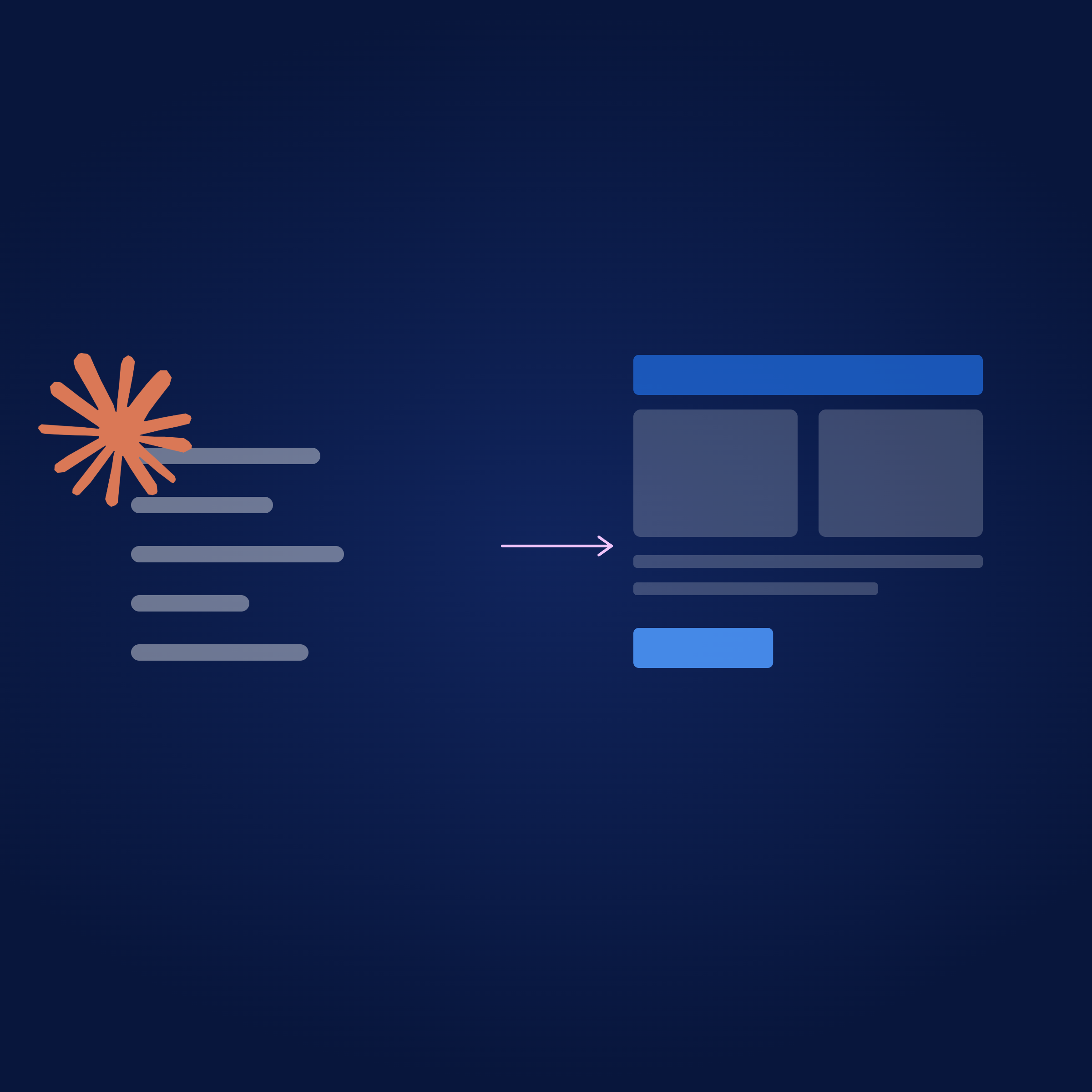
Every component we build with Claude follows four stages. Each one is simple on its own. The combination eliminates hours of manual work per component.
"I literally give it the Figma MCP and it develops the section for me, which I can then copy-paste directly into Webflow." Nemanja Vasilevski, Team Lead, Flow Ninja
Stage 1: Prompt. Describe what the component should do. Not vague instructions. Specific functionality, content structure, states, responsive behavior, and accessibility requirements. The quality of the prompt determines the quality of the output.
Stage 2: JSON generation. Claude, loaded with Webflow skills, generates Webflow-compatible component JSON. Not generic HTML. Actual Webflow element JSON with class naming, nested structures, responsive settings, and attribute configuration.
Stage 3: Designer. Copy the JSON into Webflow's Designer. The component appears with correct classes, accessibility attributes, form configurations, and state management already in place. No manual rebuild.
Stage 4: Production. Developer reviews the component, refines edge cases, connects variables, tests responsive behavior, and publishes. This is the human quality layer that turns "AI-generated" into "production-ready."
The gap between what most people expect from AI components (rough drafts that need extensive rework) and what this pipeline produces (components that need refinement, not rebuilding) is entirely down to Stage 2. The skills Claude uses to generate that JSON are what make the difference.
What Makes a Component "Production-Ready"
A component isn't production-ready because it looks right. It's production-ready when it meets five criteria that most AI output fails on by default.
The five criteria:
- Proper class naming and hierarchy. Classes follow your design system's naming convention. No generic "div-block-47" names. Nested structures match your component patterns.
- Accessibility attributes. ARIA labels, auto-complete fields, tab order, focus states. Not added after the fact. Built in from the first pass.
- Variable connections. Typography, colors, and spacing reference your Webflow variables, not hard-coded values. Change a variable, and every component updates.
- Responsive behavior. Breakpoint-specific settings configured. Not just "it doesn't break on mobile" but "it's designed for mobile first."
- CMS bindings. Where applicable, dynamic content connections are pre-configured. Collection fields map to the right elements.
Without custom skills, Claude generates output that fails on at least two of these criteria. With skills, it hits all five consistently.
The Guardrails That Make It Work
The .md rules file is the quality control layer. Without it, Claude will hard-code fonts, use inconsistent class names, and ignore your variable system. Every one of those mistakes costs time to fix in the Designer.
"In the Claude .md file, I told it to never use fonts directly, because that's where people can make mistakes. I gave it the rule to always use variables for that." Nemanja Vasilevski, Team Lead, Flow Ninja
What your rules file should contain:
- Variable usage rules (typography, colors, spacing: always reference variables, never hard-code)
- Font handling (never import from Google Fonts directly; always use variables)
- Class naming conventions (prefix patterns, nesting rules, state naming)
- Accessibility requirements (minimum ARIA labels, auto-complete attributes for forms, tab order)
- Responsive breakpoint rules (mobile-first, specific behavior per breakpoint)
- Forbidden patterns (no inline styles, no generic class names, no duplicate classes)
Build this file once. Refine it as you encounter edge cases. Apply it to every project. The rules file is reusable, and every rule you add prevents the same mistake from happening again across every future build. For the full setup guide, see building custom Webflow integrations with Claude.
Real Examples: Components We've Shipped
Theory is easy. Here's what we've actually shipped with this pipeline.
Complex form with conditional logic. Dropdowns that change based on prior selections, animation states between form steps, full accessibility markup (auto-complete, ARIA labels, tab order), and mobile-first responsive design. Manual build: approximately two days. With Claude: two hours.
"All the analysis here, all the code, all the animations, everything was built in, like, two hours." Nemanja Vasilevski, Team Lead, Flow Ninja
Interactive quiz for a client site. A recommendation engine that suggests the right program based on a user's knowledge level. Built entirely through vibe coding with Claude, shipped as the first AI-generated interactive feature on a production Webflow site.
"We're releasing the first vibe-coded feature, which is a quiz. We managed to build a quiz that, based on your current knowledge level, can recommend which program is right for you." Uros Mikic, CEO, Flow Ninja
HTML tables for CMS blog posts. Webflow's CMS doesn't support native tables in rich text fields. We gave Claude our style guide, brand colors, and table content. It generates branded HTML tables that we embed directly into CMS posts. Every table follows the same design system without manual formatting.
Components We've Shipped with Claude
Each of these went through the full four-stage lifecycle. Prompt, JSON, Designer, production review. The build times assume skills and rules are already configured. First-time setup adds a few hours, but it pays for itself on the second project.
Where AI Components Still Need Human Hands
We track this across every build. Claude handles roughly 80% of a component reliably. The remaining 20% is where a developer's judgment makes the difference between "good enough" and "production-ready."
What Claude handles consistently:
- Structural layout and element hierarchy
- Class naming and nesting
- Accessibility attributes and form configuration
- Basic responsive behavior
- CMS bindings and dynamic content connections
- State management for common patterns (hover, active, focus)
Where developers still step in:
- Complex scroll-based interactions and Webflow IX2 animations
- Edge-case responsive behavior on unusual viewports (ultra-wide, foldable devices)
- Brand-specific design decisions that aren't documented in the rules file
- Cross-component dependencies (hero + sticky nav interaction, for example)
- Animation timing, easing curves, and interaction triggers
"As for the Designer, there are already problems; it doesn't work that well. With the API, there's much more flexibility." Nemanja Vasilevski, Team Lead, Flow Ninja
The developer's role shifts from building components from scratch to reviewing, refining, and handling edge cases. You start at 80%, not zero. That's where the two-hour build times come from. You're not building a form from nothing. You're refining a form that already has proper classes, accessibility, states, and responsive logic in place.
How to Start Generating Components with Claude
You don't need the full skill stack on day one. Start small, build confidence, expand.
- Set up the Webflow MCP. If you haven't connected Claude to your site yet, start with What Is the Webflow MCP?.
- Build your first skill. Download Webflow's element documentation for sections and grids. Structure it into a skill file. Load it into Claude Code. See building custom integrations for the walkthrough.
- Create your .md rules file. Start with variable usage, font handling, and class naming conventions. Add rules as you encounter mistakes.
- Build a simple component. A section with a heading, paragraph, and CTA button. Copy the JSON into the Designer. Verify it meets your standards.
- Scale up. Move to grids, forms, collection lists, and interactive elements as your skills and rules expand.
- Always review in the Designer. AI components are a starting point, not a finished product. The human review is what makes them production-grade.
Want to skip the setup and work with a team that's already built this? Let's talk. Or run a free Foresight audit to see if your site's component architecture is ready for AI generation.
FAQ
Can Claude generate Webflow components from a Figma design?
Yes. Through the Figma MCP, Claude reads your Figma file (layers, spacing, typography, component hierarchy) and generates Webflow-compatible JSON. You copy that JSON into the Designer and the component appears with proper classes, accessibility attributes, and responsive settings. The pipeline requires Webflow skills loaded with element documentation. See our post on Figma vs Webflow for more on the design-to-build relationship, and the Figma to Webflow plugin guide for the complementary plugin workflow.
Are AI-generated Webflow components accessible?
With the right skills and rules file, yes. Claude generates ARIA labels, auto-complete attributes, tab order, and focus states from the first pass. Without skills, accessibility is inconsistent. The rules file is what ensures every component meets your accessibility standards by default, not as an afterthought.
How is this different from Webflow's native AI builder?
Webflow's AI builder generates page sections that match your existing styles. It's designed for content teams and quick builds. Claude with custom skills generates Webflow-native JSON for complex components: multi-state forms, interactive elements, CMS-bound collection lists, and custom accessibility patterns. The native builder is for page sections. Claude is for production components. They complement each other.
Do AI components maintain my site's design system?
Only if your .md rules file and Claude skills encode your design system. Without them, Claude generates generic output. With them, every component follows your variable system, class naming conventions, and component patterns. The rules file is what enforces design system compliance across every build.
Can Claude generate interactive components (quizzes, calculators)?
Yes. We've shipped an interactive quiz that routes users to personalized recommendations based on their knowledge level. We've also built calculators and comparison tools. Interactive components require more detailed prompting and often need custom JavaScript, but Claude generates both the structural Webflow elements and the accompanying code.
What types of Webflow components work best with AI generation?
Components with clear, repeatable patterns produce the best results: forms, grids, card layouts, hero sections, CMS collection lists, pricing tables, and FAQ sections. Components that rely heavily on custom animations, scroll-based interactions, or complex multi-element dependencies still need more human intervention.
How long does it take to set up the skills for component generation?
Initial setup (downloading Webflow docs, structuring skill files, creating a rules file, and testing with a basic component) takes 4-8 hours depending on your familiarity with Claude Code. That investment pays for itself on the second project. From there, adding new element types to your skill stack takes 30-60 minutes each. How AI is changing WebOps covers the broader infrastructure investment.
Can non-developers use Claude to generate Webflow components?
For simple components (sections, text blocks, basic grids), a content team member with Webflow experience can use the pipeline. For complex components (forms, interactive elements, CMS-bound dynamic content), you need a developer who understands Webflow's architecture and can review the output. The pipeline doesn't eliminate the need for development expertise. It amplifies it.

Mihajlo Ivanovic
SEO and Content Manager at Flow Ninja, writing on technical SEO for Webflow, programmatic SEO, and how to earn citations in AI search.



See your website the way a senior strategist does
Foresight scans your site across 10 strategy dimensions. You get a scored breakdown of every gap costing you leads.
Continue reading




.png)





Ready to escape your CMS nightmare
100+ successful migrations. 0 ranking disasters at launch. One embedded team that's done this before.