10 Common Webflow Problems and How to Fix Them
The most common Webflow problems are a slow Designer, heavy images and video, unnamed classes, outdated layout elements, messy spacing, anchor links, unclear team edits, lost work and menus that break on tablets. Most have a native fix: the Style selectors panel, the image conversion tool, the Box element, section links and automatic backups you can restore.
Webflow lets teams build professional sites without hand-coding every page. It still has rough edges, and most of them are quick to fix once you know where to look.
I’ve collected the problems many users run into when using Webflow, with a fix for each. Where a fix depends on a Webflow feature or plan, I checked it against Webflow’s help center and pricing page in October 2026.
{{cta}}
The 10 problems at a glance
| Problem | Quick fix | Where to find it |
|---|---|---|
| Slow or stuck Designer | Check your connection and browser version, test in an incognito window, clear unused styles | Your browser, plus the Style selectors panel (press G) |
| Uncompressed media | Compress files before upload; convert existing JPEG and PNG images to AVIF or WebP | Image conversion tool |
| Unoptimized images and video | Modern formats, descriptive file names, alt text, transcripts and video schema | Assets panel and Image settings |
| Unnamed classes | Name classes after what they style and clean up unused ones | Style selectors panel |
| Old layout elements | Build new layouts with a Box set to Grid or Flex | Add panel, under Structure |
| Spacing on child elements | Add padding to the parent element instead | Style panel |
| Anchor links | Give the section an ID, then add a section link | Element settings, Link settings |
| No record of who changed what | Use the Site Activity log and page branching, or agree on page owners | Team and Enterprise plans |
| Lost work | Restore an automatic backup, or save a manual one before big changes | Backups (any backup on paid Site plans) |
| Menus that break on tablets | Check every breakpoint; the Navbar menu button appears at tablet by default | Navbar element |
1. A Slow or Stuck Designer

As a designer or developer, you’ll likely spend most of your time in the Webflow Designer. Sometimes it slows down or stops responding altogether.
Webflow’s own troubleshooting guide covers five checks:
- Check your internet connection: When your browser loses its connection, the save indicator turns into a red connection icon and Webflow can’t save your work. Tools like Speed Test show whether your connection is the bottleneck.
- Update your browser: Use the latest version of whichever browser you work in, which you can check with a tool like What’s My Browser.
- Test without extensions: Webflow lists a few extensions known to conflict with it, including Grammarly and ad blockers. Open Webflow in an incognito window, or a Chrome profile with no extensions, to see whether one is the cause. If your whole computer is sluggish, clearing out large files helps too, so follow a complete guide to do it.
- Clean up unused styles: Open the Style selectors panel (press G) and remove the classes you no longer use.
- Optimize images: Heavy images slow down the canvas as well as the live site, so compress them before you upload them.
If the published site looks different from what you see in the Designer, republish the site, clear your browser cache and check again.
If it’s the live site that feels slow rather than the Designer, our Webflow optimization guide covers performance from scripts to CMS structure.
2. Forgetting to Compress Media Files Before Inserting

Webflow automatically creates responsive variants of every image you upload, so each device gets a suitable size. You should still compress any media before you upload it.
Use tools such as TinyPNG to compress your images, and keep video files as light as you can. Webflow’s image conversion tool handles the images already on your site, compressing JPEG and PNG files by converting them to AVIF or WebP.
This is a simple fix for something that can become a big problem. We’ve seen clients report poor results before coming to us simply because their content-heavy sites loaded too many heavy files, which drives up bounce rates and affects your SEO.
3. Not Optimizing Your Images and Videos

Many sites skip the image and video settings that help search engines understand their media. Webflow handles responsive sizing, and the rest is up to you.
For images, I check five things:
- Pick a modern format: Use WebP or AVIF for most images, and let Webflow convert the JPEG and PNG files you already have.
- Compress images: Keep the quality while reducing the file size, so pages load faster.
- Use descriptive file names: Name files after what they show, not "image001.jpg", so search engines understand them.
- Include alt text: Describe each meaningful image for screen readers and search engines.
- Responsive images: Serve the right size to each device, which Webflow takes care of for you.
With video, these five steps help search engines find and index it:
- Choose the right host: Uploading to YouTube and embedding the video helps people find it on YouTube too, while Vimeo gives you more embedding options.
- Optimize titles and descriptions: Say exactly what the video covers.
- Include transcripts: A transcript on the page helps search engines understand the video.
- Add structured data: Video schema tells search engines the duration, thumbnail and description.
- Create a video sitemap: If you host many videos, a video sitemap helps search engines index them.
Our guide on how to increase website speed covers the fixes beyond media.
4. Not Naming Classes in Webflow Projects
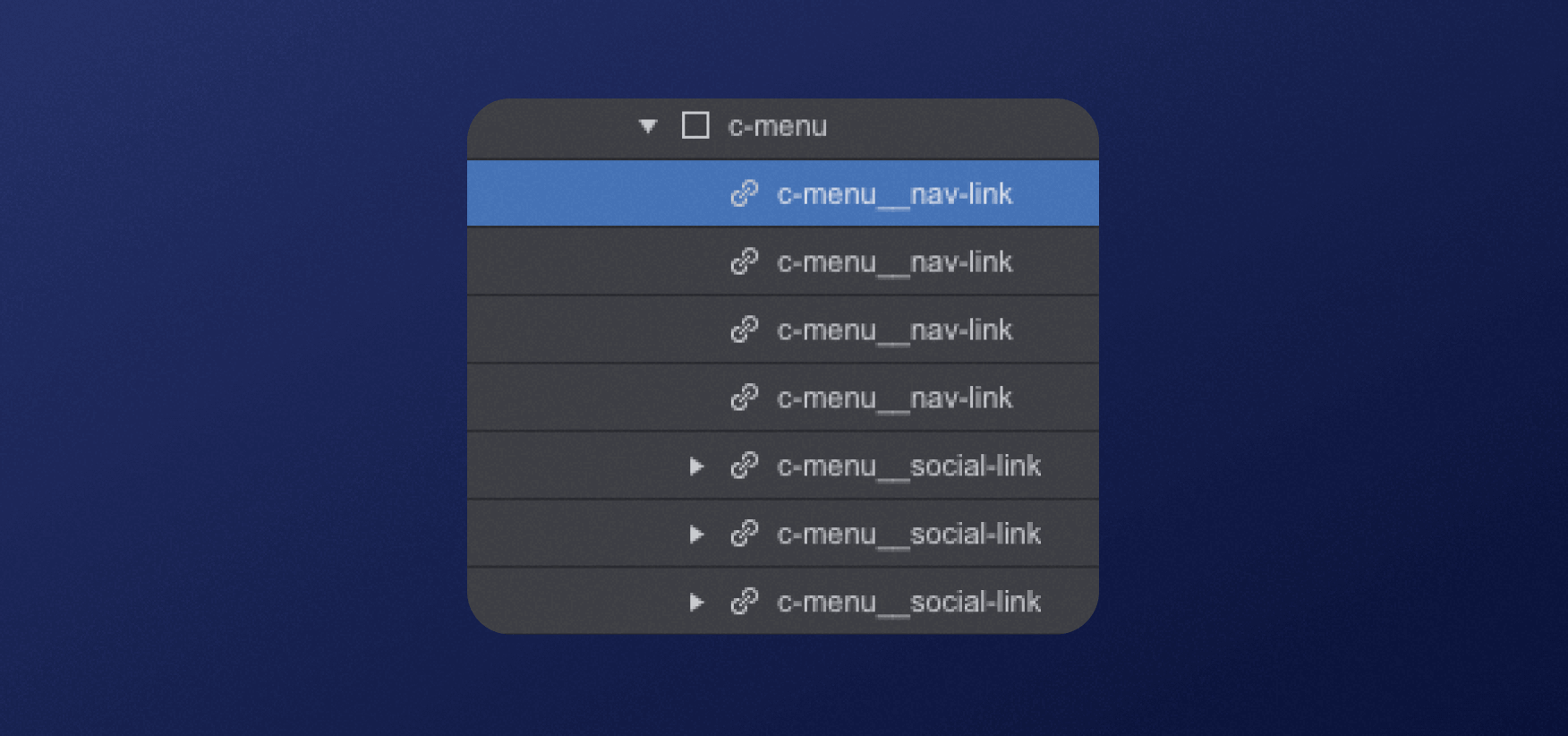
One of the most common mistakes is leaving classes unnamed. It creates problems later, especially when you want to edit or reuse your design elements.
The moment you start styling an element in Webflow, a class is created and applied to it automatically, with a generic name such as "div-block-2" or "heading-2" unless you name it yourself.
That seems convenient at first, but it quickly gets messy. Your project fills up with classes nobody can identify, which makes the ones you need hard to find and change.
To apply the same style to several elements, you then have to look up each generic class or restyle it from scratch. That wastes time and invites inconsistencies.
Name your classes in a meaningful, descriptive way. For example, call a section "hero-section" or "footer" instead of "div-block-2", and use the Style selectors panel to rename old classes and clean up the ones you no longer use.
Clear class names also make collaboration and handoffs much easier.
5. Building Layouts with Old Structure Elements
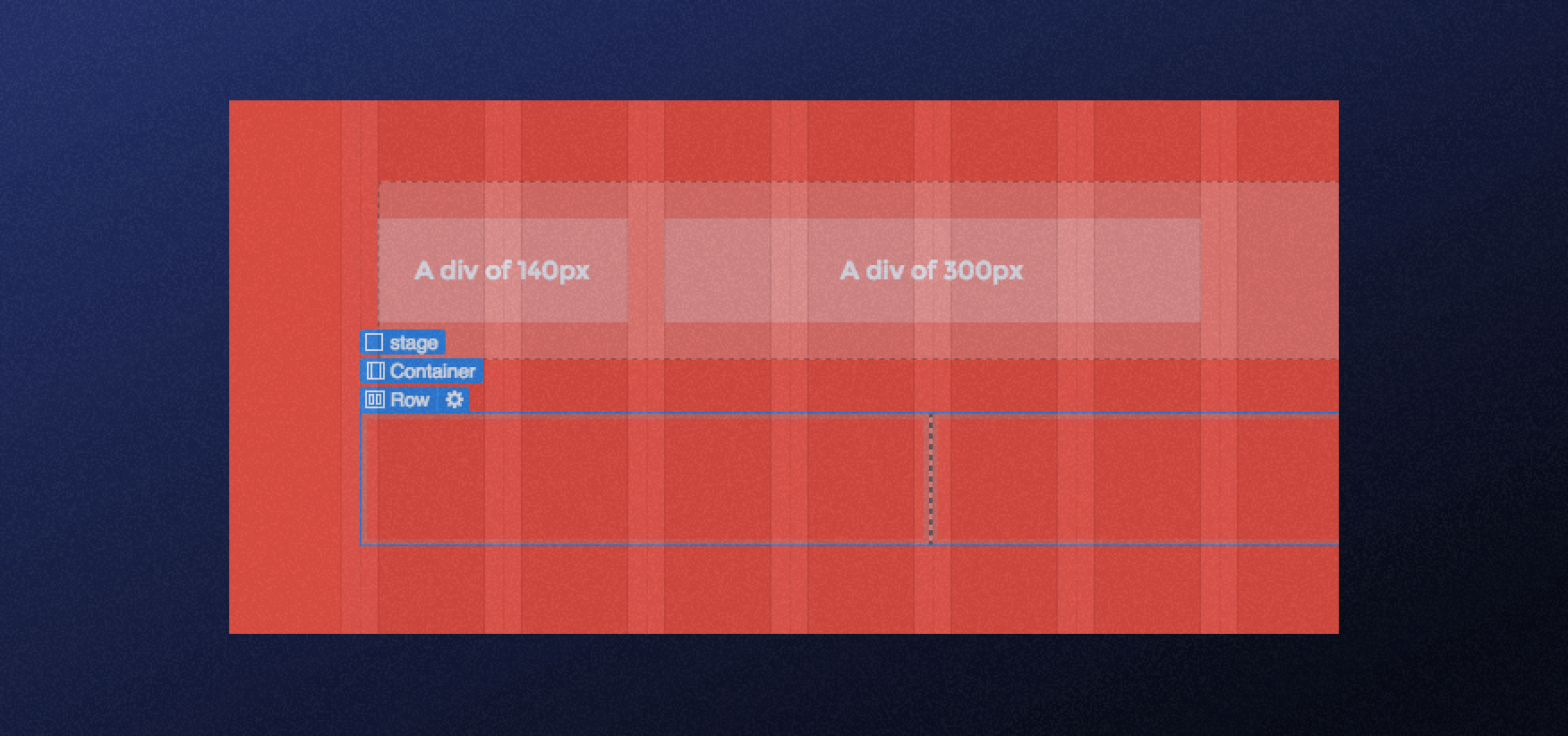
Older Webflow guides, including earlier versions of this one, recommend a Div block with a grid layout over the Columns element, because Columns was harder to customize and less reliable across screen sizes. Webflow has since replaced the Div block, Section, Container, Columns, Grid, V Flex and H Flex elements in the Add panel with a single Box element.
You’ll find the Box in the Add panel under Structure. Set its HTML tag in the Settings panel, then set its display to Flex or to Grid in the Style panel.
For new layouts, use a Box set to Grid instead of a columns layout. Grid gives you more control over rows, columns and how they adapt on smaller screens, and the elements already on your site keep working, so there’s no need to rebuild old pages.
6. Adding Margins or Padding to Child Elements

Margins and padding create space and improve your layout. However, avoid adding margins or padding directly to child elements, as this can cause unwanted effects and break your design.
Instead, add the spacing to the parent element. For example, if a section holds a heading and a paragraph, add padding to the section, not to the heading or the paragraph.
This way, you control the spacing of the child elements from the parent and keep them aligned and consistent.
7. Adding Anchor Links with Custom Code

Anchor links take visitors straight to a section of a page, so people can share direct links without scrolling or searching. Webflow supports these section links natively, with no custom code.
Webflow’s section link guide sets one up in three steps:
- Select the section you want to link to, open the Element settings panel and type a unique ID in the ID field, with no spaces.
- Select the link or button that should point to it.
- Open Element settings, then Link settings, click the Page section button and choose your ID from the Section dropdown.
After adding anchor links, test the page on different devices and browsers to make sure each link lands on the right section.
8. Lack of Clarity on Who Did What

Most Webflow plans still don’t give you a full record of who changed what. Keeping tabs on edits matters, so nobody overwrites someone else’s work or loses track of an update.
The Team and Enterprise plans add the Site Activity log, which shows what changed, when and by whom, and page branching, which lets people build and iterate on pages without touching the live site.
Without those plans, agree on who edits which pages and save a manual backup before big changes.
9. Retrieving Edit History

Webflow backs up your site automatically as you work, creating a restore point on every 50th auto-save. Paid Site plans can restore any backup at any time, while free Starter sites can only go back to one of the two most recent backups unless you have a paid Workspace plan, according to Webflow’s backup guide.
Webflow doesn’t offer scheduled backups, so save a manual backup before any substantial change, such as a redesign or a big content import. That way, rolling back is a single restore.
10. The Desktop/Tablet Issue

On desktops, big menus usually fit with room to spare. On tablets and smaller screens, the same menu can overflow, with items cut off or hidden.
Webflow’s Navbar element handles part of this for you, because its menu button is hidden on desktop and appears at the tablet breakpoint and below by default. Check the menu at each breakpoint anyway, and restyle or reorder items so the most important links come first.
Pay extra attention if you’re using a mega menu, as it needs more work to adapt to smaller screens.
Make the Most of Your Webflow Site
Most of these problems would show up in any website builder, and Webflow now has a built-in fix for most of them. Used well, it also gives you:
- Design freedom: Build custom sites in a visual interface without writing code.
- Responsive by default: Layouts adapt across breakpoints, and you fine-tune each one.
- Interactions and animations: Add motion and dynamic elements with Webflow’s built-in Interactions.
- Ecommerce: Sell products from the same site with Webflow’s ecommerce plans.
- SEO tools: Set titles, meta descriptions, redirects and sitemaps natively.
- Hosting and security: Webflow hosts your site and looks after the infrastructure.
- Webflow CMS: Manage blog posts and other content without touching the design.
- Community and support: Get help from Webflow’s community and support team.
The sooner your team builds these habits, the less time it spends cleaning up later.
If you’d rather hand this work to a team that runs Webflow sites every day, get in touch with Flow Ninja, a Webflow partner and WebOps team.
{{cta}}
FAQ for Common Webflow Problems
Why is the Webflow Designer slow?
A slow Designer usually comes down to one of the five things Webflow’s troubleshooting guide asks you to check: your internet connection, your browser version, your browser extensions, unused styles and heavy images. Open Webflow in an incognito window to rule out extensions, clear unused classes in the Style selectors panel and compress large images. If the save indicator turns into a red connection icon, Webflow can’t save your work until you’re back online.
How do I add an anchor link in Webflow?
Give the target section an element ID, then point a link at it with a section link. Select the section, open the Element settings panel and type a unique ID with no spaces, then select your link, open Link settings, click Page section and choose the ID from the Section dropdown. No custom code is needed.
How does Webflow compare with WordPress for SEO performance?
Webflow offers built-in SEO tools like clean HTML5 markup, customizable meta tags, and automatic sitemap generation. WordPress relies more on third-party plugins. For users prioritizing visual design with native SEO capabilities, Webflow may provide a faster, more integrated experience.
What’s the best way to back up your Webflow project regularly?
Rely on Webflow’s automatic backups and save a manual backup before any big change. Webflow creates a restore point on every 50th auto-save, and paid Site plans can restore any backup at any time, while free Starter sites can only go back to one of the two most recent backups unless you have a paid Workspace plan. Webflow doesn’t offer scheduled backups, so a manual backup before a redesign or migration is the safest habit.
Can you integrate Webflow with third-party analytics tools?
Yes, Webflow works with Google Analytics and most other analytics tools. You can connect Google Analytics 4 through Webflow’s Google Analytics integration or the Google site tools for Webflow app, and add tools like Hotjar or the Meta pixel with custom code, which needs a Core, Growth, Agency or Freelancer Workspace or an active Site plan. If you’d rather stay native, Webflow’s Analyze add-on starts at $9 a month billed yearly.
Is Webflow suitable for building multilingual websites?
Yes, Webflow localizes sites natively through Webflow Localize, an add-on priced per locale. Essential costs $9 a month per locale for up to 3 locales and Advanced $29 a month per locale for up to 10, billed yearly, and the Team plan includes 2 locales. Third-party tools like Weglot remain an option if your team already uses them.
What are the best practices for maintaining responsive design in Webflow?
Design for mobile-first, use relative units like percentages or ems, and regularly test across breakpoints. Employ Webflow’s Flexbox and Grid tools for layout control, and avoid fixed heights or widths that may conflict with content on smaller screens.
How can Webflow's CMS help non-developers manage website content?
Webflow CMS allows non-technical users to manage dynamic content through an intuitive interface. Editors can update blogs, team pages, or portfolios without touching design elements, ensuring separation of content and layout for safer updates.
What options exist for e-commerce functionality in Webflow?
Webflow offers built-in e-commerce features including cart systems, product pages, and checkout integrations. For advanced functionality like subscriptions or multi-currency, users can integrate third-party solutions such as Foxy or Shopify embeds.

Vukan is a Software Quality Ensurance Engineer. The only thing he does better than QA is playing his bass guitar.


See your website the way a senior strategist does
Foresight scans your site across 10 strategy dimensions. You get a scored breakdown of every gap costing you leads.
Continue reading






Ready to escape your CMS nightmare?
100+ successful migrations. 0 ranking disasters at launch. One embedded team that's done this before.